Animate Lab Exercise #10: Adding Interactivity with Action Scripts
Prerequisites:
1. Create
a folder on your desktop called chapter10.
2. Detach and unzip the chapter10 Animate
Flash files. Place the Animate files
inside your chapter10 folder.
Requirements for Part 1:
A. Create Scene 1
1. Open the Animate Flash file- chapter10Part1Scene1.fla.
Note: Attached is a sample of the Animate Flash
output file- Chapter10Part1Scene1.html.
Timeline has 125 frames at 24
fps. Length of timeline is 5.2 secs
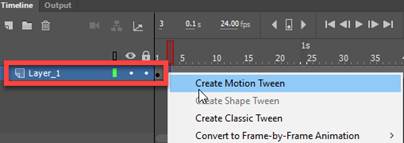
2. In frame 1 of
the “flying_bear” layer, right click on the timeline and select Create
Motion Tween.

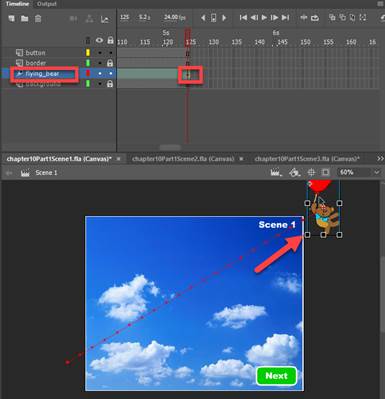
3. Go to frame 125 and move the flying-bear symbol to
outside of the stage top right corner as shown below.
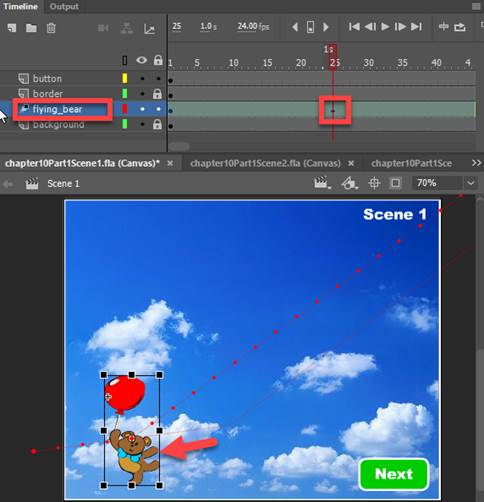
4. Go to frame 25
and move the flying-bear symbol to a different position as shown below.
5. At frame 50, frame 75
and frame 100, repeat the same steps in moving the flying-bear symbol to
different positions on the stage as shown below.

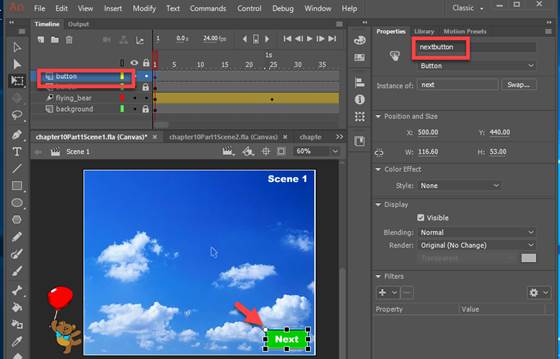
6. Using the Selection Tool, select the “Next” button on the
stage.
Enter the name of the
instance of the button “nextbutton”
7. Add the Action Script
for the Next button
a.
Go to frame 1 of the button layer.
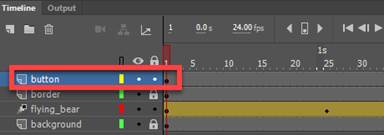
b. Use the Selection Tool and
select the Next button

c. Press F9 to open the
Action Script or from the Main Menu, select Windows-> Action
d.
Click on the Code Snippets button

e. Expand the Action folder under HTML5 Canvas,
and select “Click to Ggo to Web Page”
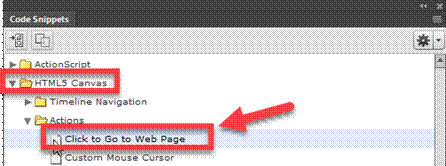
f. Replace the parameter with highlighted in yellow
with "chapter10Part1Scene2.html", "_self"
Note; You can copy and paste the : "chapter10Part1Scene2.html", "_self" to replace the parameter

g,
Verify that the correct html address has been- see green
arrow. Close the Action Windows
by click on the “X”
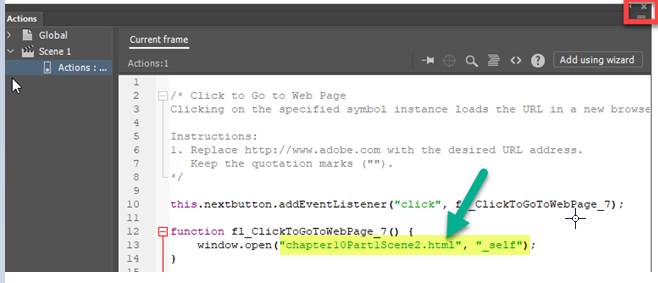
h.
Note: A new layer was created for
the Action Script. To verify the action
script, go to frame 1 of the Action Layer and press F9
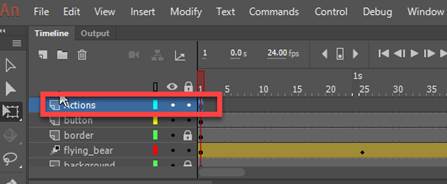
8. Create a Movie Clip
Symbol
a.
Go to frame 1 of the “fflying_bear” layer. Right click on the timeline
and select Copy Motion.
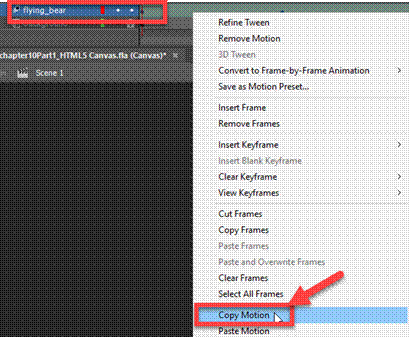
b.
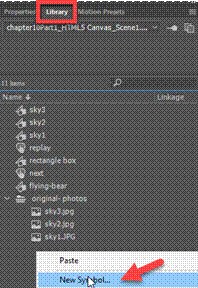
Go to the Library Panel.
At the bottom of the window, right click and select New Symbol
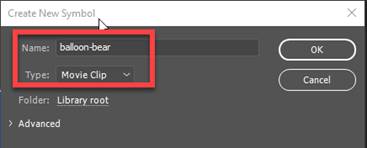
c. Enter “balloon-bear” as the name and select Movie
Clip as the symbol Type. Click on the OK button.
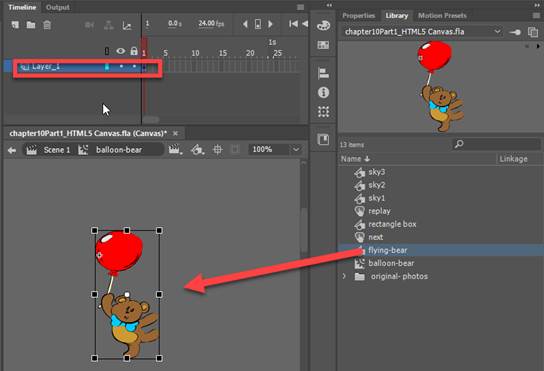
d. In frame 1 of the balloon-bear timeline, drag
a copy of the “flying-bear” graphic symbol onto the stage.
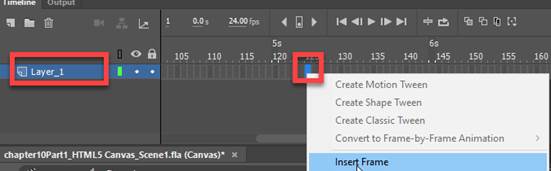
e. Go to frame 125. Right click and select Insert Frame.
f.
Go back to frame 1. Right
click on the timeline and select Covert to Motion Tween
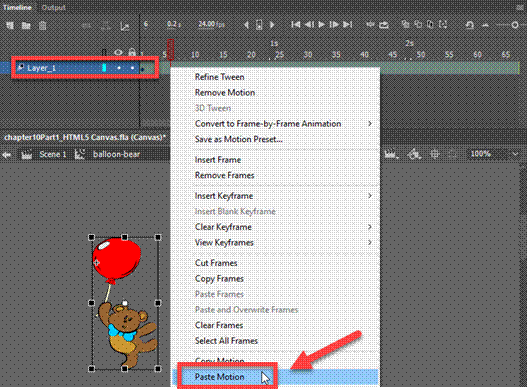
g. Still in frame 1. Right click on the timeline and select Paste
Motion
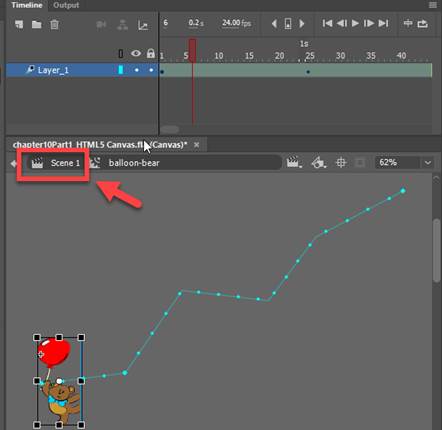
h. To go back to the scene, click on the Scene
tab (see red arrow)
NOTE: You will be using this Movie Clip symbol you
just created in Scene 3.
9. Verify your document has the
required symbols on the timeline and stage.
See attached sample of the Animate Flash output file- Chapter10Part1Scene1.html.
10.
Save your Animate Chapter10Part1Scene1.fla file in your chapter9 folder.
11. Publish your file in
JavaScript/HTML format.
From the
Main Menu, select Publish Settings.
Select “Center Stage = Both” only
Click on the Publish button
12.
Test Movie. Press
<Ctrl><Enter> or from the Main Menu, select, Control -> Test
Note: The Next button will not work until we
complete Scene 2
B. Create Scene 2
1. Open the Animate Flash file- chapter10Part1Scene2.fla.
Note: Attached is a sample of the Animate Flash
output file- Chapter10Part1Scene2.html.
Timeline has 50 frames at 24
fps. Length of timeline is 2 secs
2. Setup the Mask Layer
a.
Double click on the mask layer and select “Mask” and then click OK
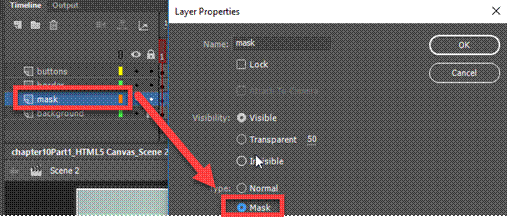
b. Move the background
layer by dragging the it underneath the mask layer as shown below
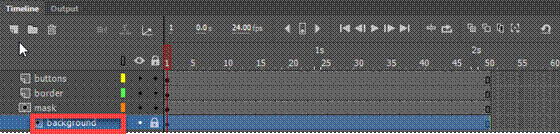
c. In frame 1 of the mask layer has the
square shape that has been group.
Right click on the shape and
select Convert to Symbol
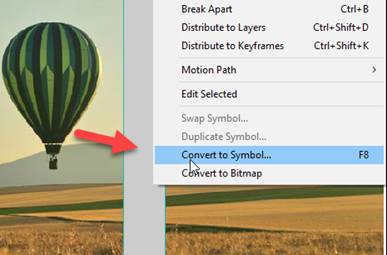
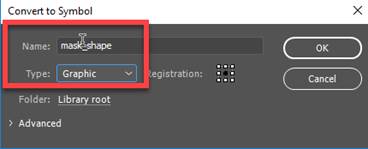
d. Enter the name of the symbol has “mask_shape”
and select Graphic as the Symbol Type.
Click on OK
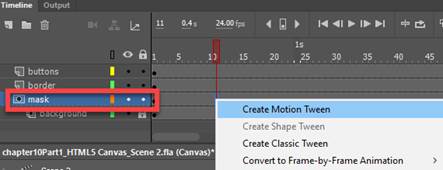
e.
Go to frame 1 of the mask layer, right click on the timeline and
select Create Motion Tween
f. Go to frame 50 of the mask
layer. Click on the Free Transform
Tool.
Use the right handle to have the
symbol shape cover the entire background as shown below.
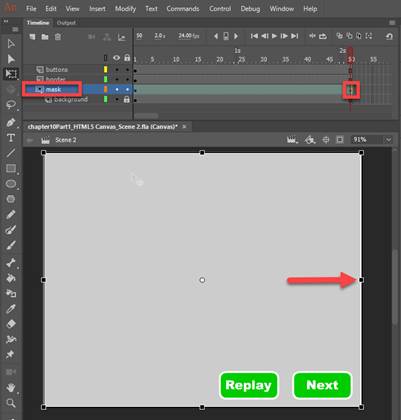
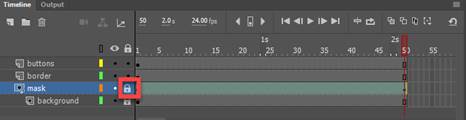
g. Lock the mask layer as shown below.
3. Add the Action Script
for the Replay button
a.
Go to frame 1 of the button layer.
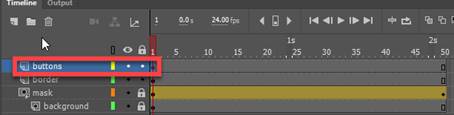
b.
Use the Selection Tool and select the Replay button

c.
Press F9 to open the Action Script or from the Main Menu, select
Windows-> Action
d.
Click on the Code Snippets button

e.
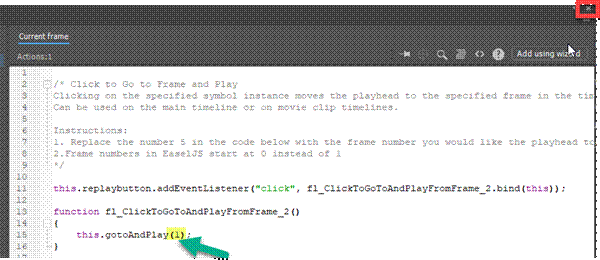
Expand the Timeline Navigation under the HTML 5 Canvas. Click on “Click to Go to Frame and Play”

f. Change the parameter highlighted in yellow to “1”
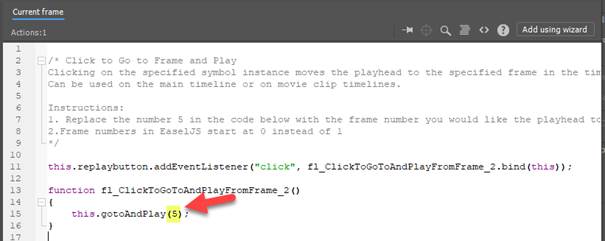
g. Verify that the correct parameter has been
updated - see green arrow.
Close the Action Windows by click on the “X”
4. Add the Action Script
for the Next button
a.
Go to frame 1 of the button layer.
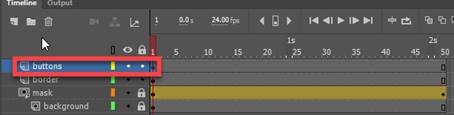
b. Use the Selection Tool and select
the Next button
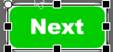
c.
Press F9 to open the Action Script or from the Main Menu, select
Windows-> Action
d.
Click on the Code Snippets button

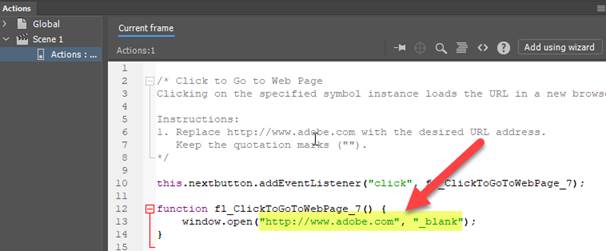
e. Expand the Action folder under HTML5 Canvas,
and select “Click to go to Web Page”
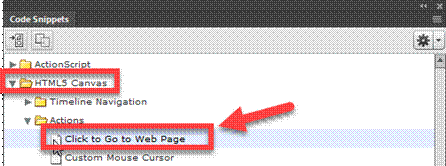
f. Replace the parameter with highlighted in yellow with "chapter10Part1Scene3.html",
"_self"
Note; You can copy and paste the : "chapter10Part1Scene3.html", "_self" to replace the parameter
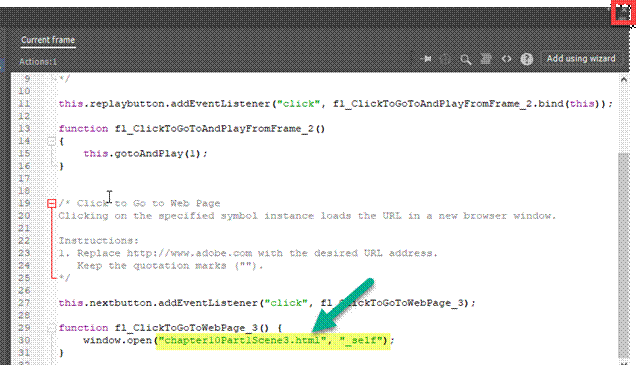
g,
Verify that the correct html address has been- see green
arrow. Close the Action Windows
by click on the “X”
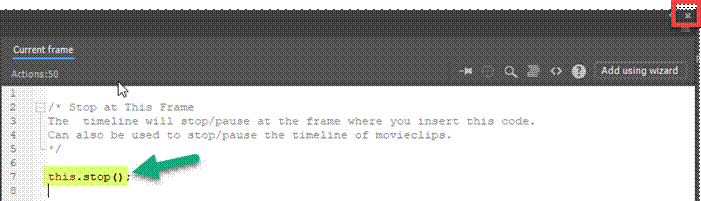
5. Add the Action Script for Stop at
Frame
a. In the Action layer, go to frame 50
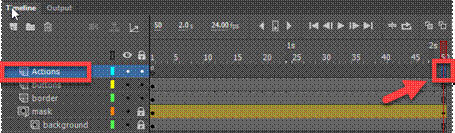
b. Press F9 to
open the Action Script or from the Main Menu, select Windows-> Action
c.
Click on the Code Snippets button

d. Expand the Timeline Navigation folder under
HTML5 Canvas, and select “Stop at this Frame”
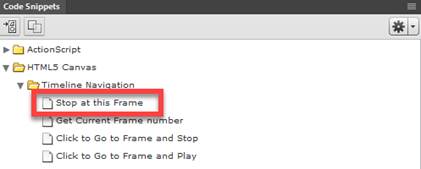
e. Verify that the
script has been added see green arrow.
Close the Action Windows by click on the “X”
6. Verify your document has the
required symbols on the timeline and stage.
See attached sample of the Animate Flash output file- Chapter10Part1Scene2.html.
7.
Save your Animate Chapter10Part1Scene2.fla file in your chapter9 folder.
8. Publish your file in JavaScript/HTML format.
From the Main Menu, select Publish
Settings.
Select “Center Stage = Both” only
Click on the Publish button
9. Test Movie. Press <Ctrl><Enter> or from the
Main Menu, select, Control -> Test
Note: The Next button will not work until we
complete Scene 3
Scene 3
1. Open the Animate Flash file- chapter10Part1Scene3.fla.
Note: Attached is a sample of the Animate Flash
output file- Chapter10Part1Scene3.html.
Timeline has movie clip in frame 1
which has 125 frames.
2. Open the Animate Flash
File you just completed for Scene 1- chapter10Part1Scene1.fla.
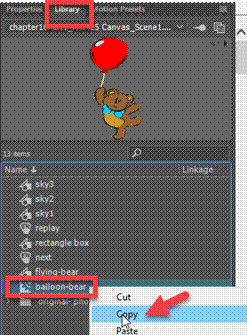
a. Go to the Library Panel.
b.
Right click on the “balloon-bear” Movie Symbol and select Copy.
c.
Once you copy the Movie Clip Symbol, you can close the chapter10Part1Scene1.fla.
2. Toggle back to the chapter10Part1Scene3.fla.
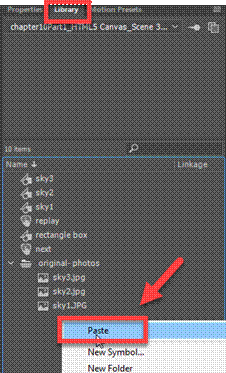
a.
Go to the Library Panel
b. At the bottom of the Library Panel, right
click and select Paste
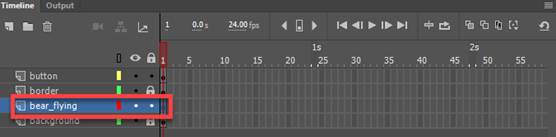
3. Select frame 1 of
the bear_flying layer
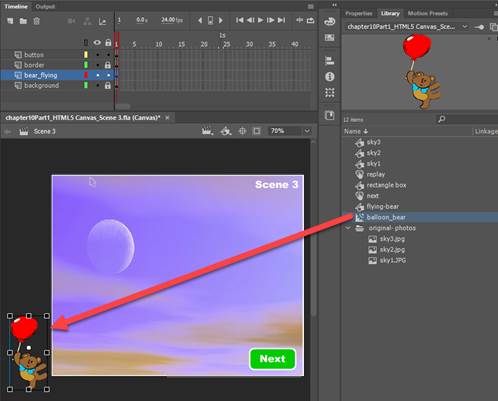
3. Drop and drag the
“balloon_bear’ Movie Clip symbol from the Library Panel to outside the stage at
the bottom left as shown below .
4. Add the Action Script for the Next
button
a.
Go to frame 1 of the button layer.
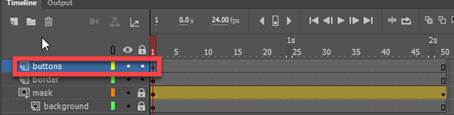
b. Use the Selection Tool and
select the Next button
c.
Press F9 to open the Action Script or from the Main Menu, select
Windows-> Action
d.
Click on the Code Snippets button

e.
Expand the Action folder under HTML5 Canvas, and select “Click to go
to Web Page”

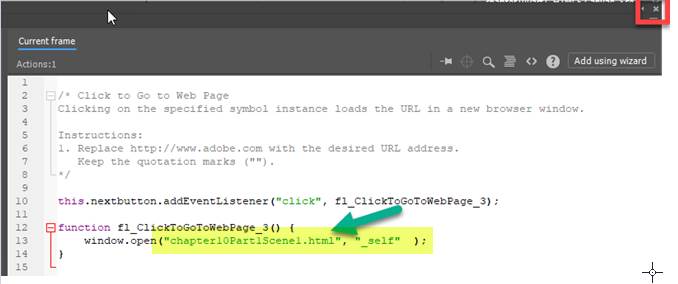
f. Replace the parameter with highlighted in yellow with "chapter10Part1Scene1.html",
"_self"
Note; You can copy and paste the : "chapter10Part1Scene1.html", "_self" to replace the parameter
g,
Verify that the correct html address has been- see green
arrow. Close the Action Windows
by click on the “X”
5. Verify your document has the
required symbols on the timeline and stage.
See attached sample of the Animate Flash output file- Chapter10Part1Scene3.html.
6.
Save your Animate Chapter10Part1Scene3.fla file in your chapter9 folder.
7. Publish your file in JavaScript/HTML format.
From the Main Menu, select Publish
Settings.
Select “Center Stage = Both” only
Click on the Publish button
8.
Test Movie. Press
<Ctrl><Enter> or from the Main Menu, select, Control -> Test
Requirements for Part 2
1. Open the Animate Flash
file- chapter10Part2
Note: Attached is a sample of the Animate Flash
output file- Chapter10Part2.html
Timeline has 150 frames at 24
fps. Length of timeline is 6.2 secs
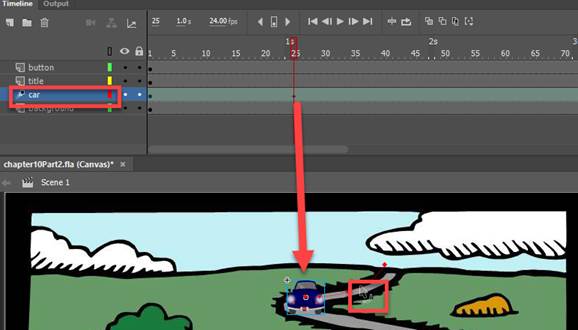
2. Animate the car symbol
a.
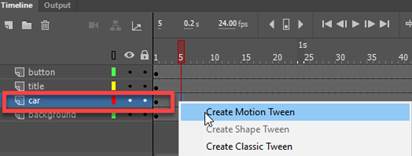
Go to frame 1 of the car layer.
Right click on the timeline and select Create Motion Tween
b. Go to frame 25
of the car layer

Move the car symbol to the new
position shown below
Click
on the Selection Tool.
Place your mouse over the
path until you see the mouse pointer with a semi-oval curve.
Drag to the trajectory path as
shown below
c. Go to frame 75 of the car layer and move
the car symbol to the new position as shown below
Click on the Free Transform
tool. Click on the car symbol and
increase the size using the handle
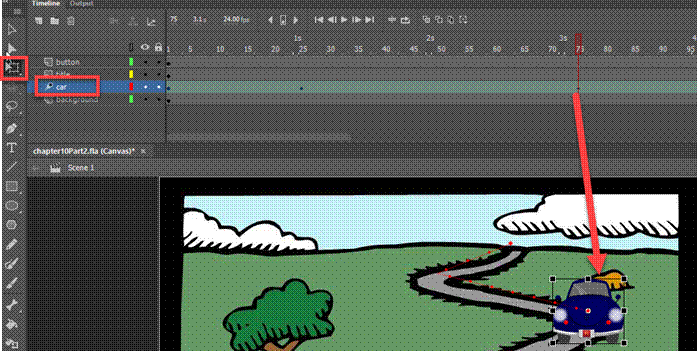
e. Go to frame 150 and move the car
symbol to the new position as shown below
Click on the Free Transform
tool. Click on the car symbol and
increase the size using the handle
Click
on the Selection Tool.
Place your mouse over the
path until you see the mouse pointer with a semi-oval curve. Drag to the trajectory path as shown below

3. Animate the title
a. Go to frame 1 of the title layer. Right click on the timeline and select Create
Motion Tween

b. Go to frame 75 and move the title symbol to
the new position shown below.
Note: Hold down the shift key when moving the title
symbol to the new location

4. Adding the button and
inserting the action script
a. Go to frame 1 of the button layer.
Select the Play button
b.
Press F9 to add the Action Script.
Select “Click to Go to Frame and Play”
Change the parameter from 5 to 1
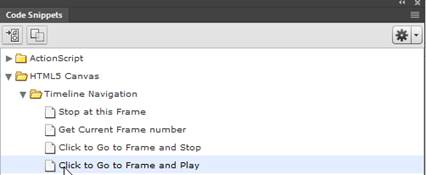
Change the parameter from 5 to 1

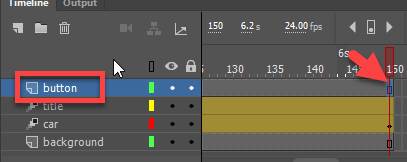
d. Go to frame 150 of the button layer
and Press F9 to add the Action Script.
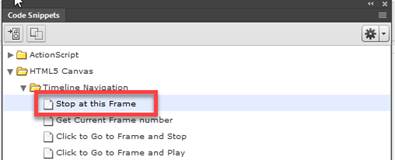
Select Stop
at this Frame
5. Verify your document has the
required symbols on the timeline and stage.
See attached sample of the Animate Flash output file- Chapter10Part2.html
6.
Save your Animate Chapter10Part1Scene2.fla file in your chapter9 folder.
7. Publish your file in JavaScript/HTML format.
From the Main Menu, select Publish
Settings.
Select “Center Stage = Both” only
Click on the Publish button
8. Test Movie. Press <Ctrl><Enter> or from the
Main Menu, select, Control -> Test
Note: The Next button will not work until we
complete Scene 3
Submit:
1. Submit the screenshot of
the output result when you test the Movie
On your keyboard, press <Print
Screen> and then paste into a Paint document. Save the file as a JPG
2. Zip up your Exercise-10 folder containing the
Animate Files
NOTE: Right click on the folder and select Send to
“Compress Folder”. The file will have a
file extension of .zip.
3. Submit and upload the
screenshots and zipped up compress Exercise-10 folder to the Canvas Animate Exercise 10 drop box
|
Chapter 10 Topics |
Points |
|
1. Create and Add Buttons |
6 |
|
2. Assign Frame Actions |
6 |
|
3. Add a gotoAndPlay() Action to
the Timeline |
6 |
|
4. Fade In A Movie Clip with
ActionScript |
6 |
|
6. Start, Stop and Play an Animation with a Button |
6 |
|
Total |
30 |