Animate Project Part 2 (45 points)
Prerequisites:
1. Create
a folder on your desktop called Project
2. Detach and unzip the FlashProject2 Canvas
file. Place the Flash file inside your
Project2 folder.
3. See attached sample of the Flash output file- FlashProject2.html.
Requirements:
A.
Open the Animate Flash file- FlashProject2_Canvas.fla
NOTE: This Animate Document is an HTML5 CanvasPlatform Type file which has 4 scenes on the timeline
Each scene has 60
frames at 24 FPS. Length of timeline in
each scene is 2.5 secs
In the Properties panel, verify the
document stage size, stage background color and FPS (frames per second).
1. Size:
600 x 350 px
2.
FPS: 24
3.
Stage color: #6699FF
B. Scene 1
1. Go to frame 1 of the
photo layer under the Scene 1 folder
2. From the Library Panel, drag and
drop the picture1 movie click into frame 1
3. In the Properties Panel, verify
the position coordinates of the movie clip: X= 475.0 and Y
= 175.0.
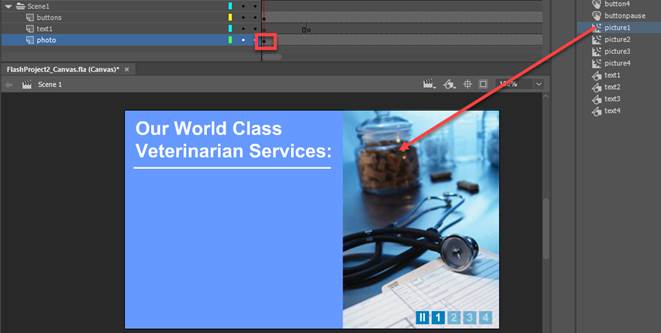
4. Right click on the
photo layer and select Create Motion Tween
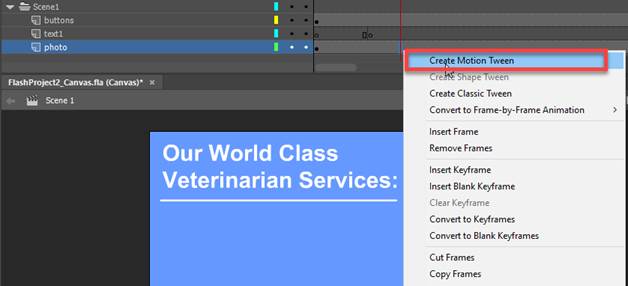
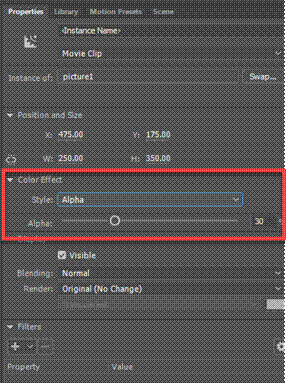
5. Go to frame 1 of the photo layer and click on
the picture1 on the Stage. In the Properties
panel, select Color Effect.
Change the Style to Alpha and set to 30%
6. Go to frame 15 of the photo layer and click
on picture1 on the Stage. In the Properties
panel, select Color Effect.
Change the Style to Alpha and set to 100%
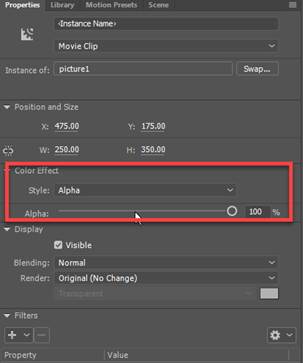
7. Go to the frame 10 of the text1 layer. Drag
and drop the text1 graphic symbol on the stage
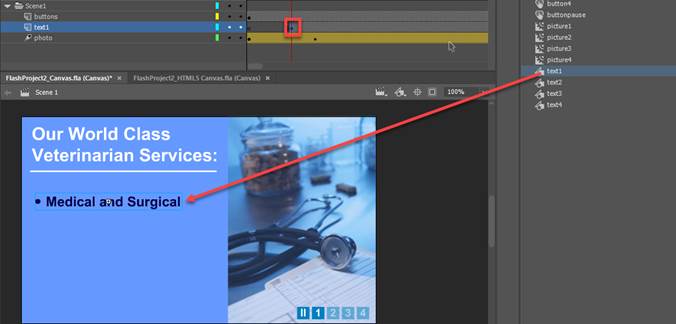
C. For Scenes 2 to 4, repeat the
steps above at each layer as illustrated
NOTE: Use the corresponding movie clip and graphic
symbol
1.
For Scene 2 which starts at frame 61 use picture2 and text2 in the library
panel
2.
For Scene 3 which starts at frame 120 use picture3 and text3 in the
library panel
3.
For Scene 4 which starts at frame 181 use picture 4 and text4 in the
library panel
D. Test the Animate Movie
1. Press
<Ctrl><Enter>.
3. Verify your document has the required animation in each scene
NOTE: See attached sample of the Flash output file-
FlashProject2_Canvas.html.
E. Publish a Animate Flash
.
1.. Go to File and select Publish
Settings.
2.
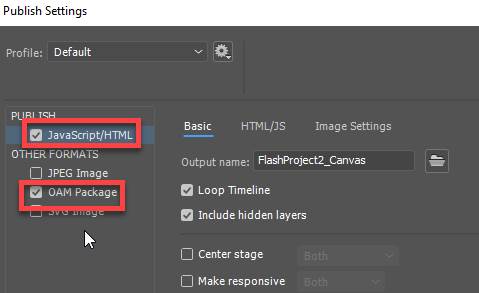
Click on JavaScript/
HTML and OAM package checkbox to insert Animation component
into the web page.
3.
Click on the Publish button
F. Publish a
Animate document as a JPEG Image
1. Open the companylogo.fla.
2. Publish the file to a JPEG image.
3. Save with an output name companylogo.jpg.
NOTE: See attached sample
of the JPEG image file- companylogo.jpg
Submit:
1. Save your Animate
Flash file in your Project1 folder.
2. Zip up the folder containing the files
below and upload to the Animate Flash Project Part 1