Animate Lab Exercise #4: Working with Text
Prerequisites:
1. Create
a folder on your desktop called Exercise 4
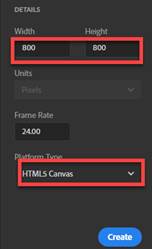
2. Create a New Animate file. Select Platform Type “HTML 5
Canvas”. Save the document as Chapter4.fla
Adjust the stage size dimension:
width: 800px and height: 800px
Requirements:
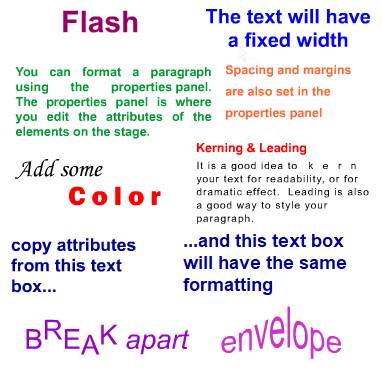
NOTE: Below are the text that you will need to
complete on your Animate stage for steps #1 - #9
1.
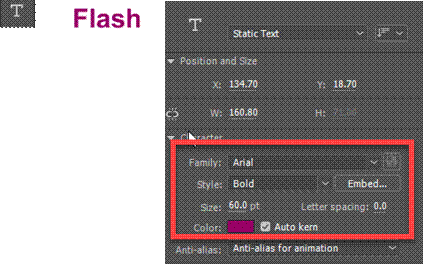
Create a text box with a dynamic
width. Adjust the Text
Properties such the Font, Style, Size and Color
2.
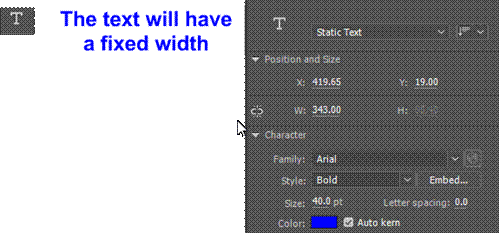
Create a text box with a
fixed width
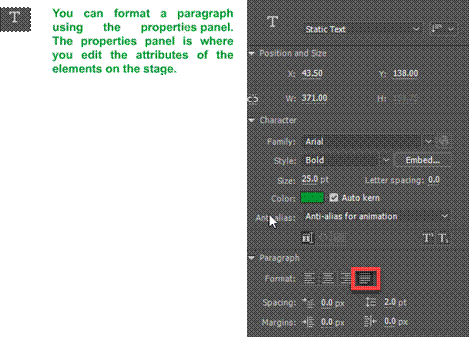
3. Add
the text and format the paragraph- Set the text box alignment - Justify
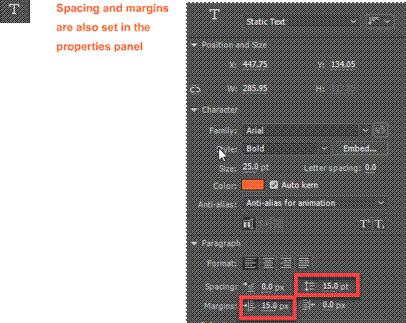
4. Add
the text and format the paragraph – Set spacing
and margins
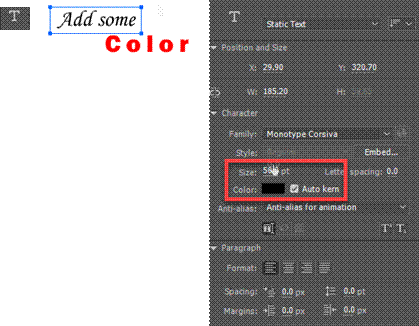
5. Add the
text and change the font
and style
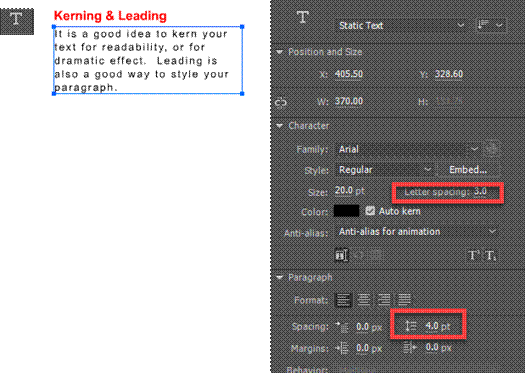
6. Add
the text and adjust text
kern by changing the leading spacing for an entire text box .
Also adjust the line spacing
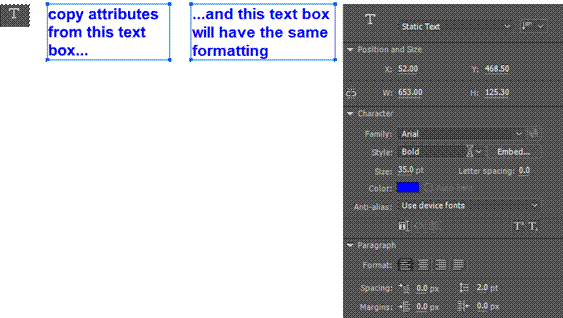
7. Add the text and copy text attributes
Move and Resize the text area
8. Add the
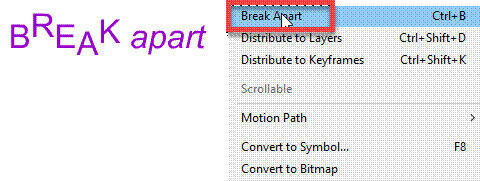
text and break the text apart.
Select the text box, right click and select Break Apart. Then Move each object to different positions
9. Add the text and Transform text
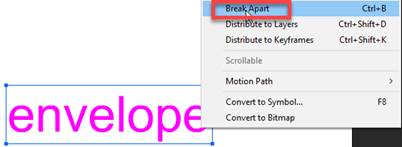
Select the text box, right click and
select Break
Apart. Repeat the Break Apart step
again
Select the object.
Right click and Select Transforms->Envelope
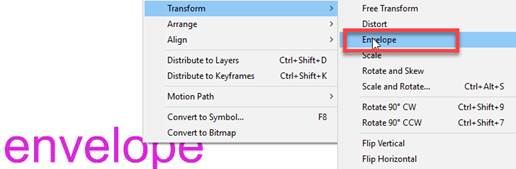
Use the handles to change the shape of the object

10. Verify your document has the required objects on the stage. See attached sample of the Flash output file- Chapter4.html.
11.
Save your Animate file in your chapter4 folder.
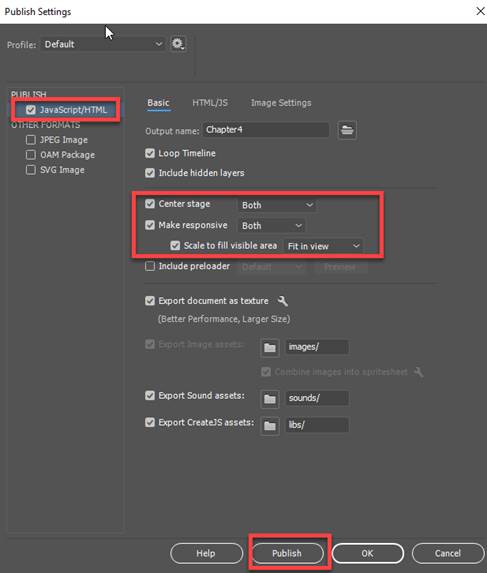
12. Publish your file in JavaScript/HTML format.
From the
Main Menu, select Publish Settings.
Select the checkboxes- Center
Stage=Both, Make Response= Both and Scale to fill visible area= Fit in View
Click on the Publish button
13 Test
Movie. Press <Ctrl><Enter>
or from the Main Menu, select, Control -> Test.
SUBMIT:
1. Submit the screenshot of the output result in
step #13
On your keyboard, press <Print
Screen> and then paste into a Paint document. Save the file as a JPG
2. Zip up your Exercise-4 folder containing the
Animate Files
NOTE: Right click on the folder and select Send to
“Compress Folder”. The file will have a
file extension of .zip.
3.. Submit
and upload the screenshot and zipped up compress Exercise-4 folder to the
Canvas Animate Exercise 4 drop box.
|
Topics |
Points |
|
1. Add text with the text tool |
4 |
|
2. Format a paragraph |
4 |
|
3. Change text colors and fonts |
3 |
|
4. Copy text attributes |
3 |
|
5. Adjust text kerning and leading |
4 |
|
6. Reshape the object using the Subselection tool |
3 |
|
7. Move and Resize text areas |
3 |
|
8. Break apart text |
3 |
|
9. Transform text |
3 |
|
Total |
30 |