Animate Lab Exercise #3: Modifying and Positioning Artwork
Prerequisites:
1. Create
a folder on your desktop called Exercise-3.
2.
Download the attached Chapter3.fla file to your
folder. Drag the flash file into your chapter3 folder.
Requirements:
1. Open
the Flash file- Chaper3.fla from your
Exercise 3 folder.
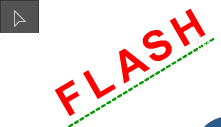
2. Re-arrange
the “Flash” text objects using the Selection
tool
3. Use
the Eraser tool
to remove parts of the “apple” shape object

4.
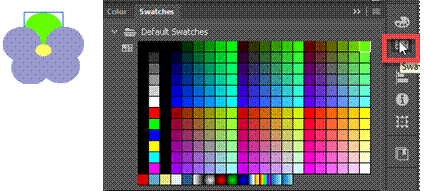
Change the color fill of the “flower” oval shape objects using the Fill Color swatch .
Use the Selection Tool to select
each shape and change the Fill Color
5.
Customize the line with the Ink
Bottle tool and change the line stroke style
Use the Selection Tool to select
the line and change the Fill and Stroke Properties

6.
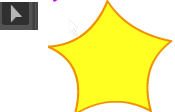
Reshape the polystar shape object using the Selection tool.
7.
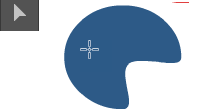
Reshape the oval shape object using the Subselection
tool
8. Copy
the color attributes of the button objects using the Eyedropper tool
9. Create
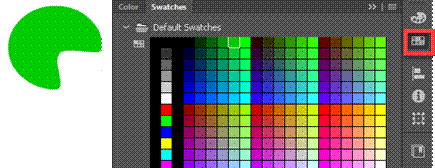
a custom color swatch and
apply the new color to the reshaped object in step 7
10. Make a custom Radial gradient fill and
apply to the “oval” shape object

11. Scale and rotate the “planet Saturn” image
using the Free Transform
tool

12. Make a custom
Linear gradient fill and apply to the “star” shape object

13. Create a group for the shapes of
the “car tire” object and copy the “car tire” group object
Hold down the shift key and select
the tire rim and outside tire and the press <Ctrll><G>
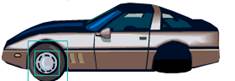
Then copy/ paste object to the empty tire area

14. Arrange the planet image objects. Place the “moon” object in the front of the
“earth” object and the “mars planet’ object behind the “earth” object
Select the planet object using the Selection Tool and then go to the Main
Menu->Modify-> Arrange

15. Align the “arcade” buttons vertically and distribute
to the center
Hold down the Shift Key to select the buttons.
Go to Align and select Align Vertical Center

16. Snap
the square shapes to each other
From the Main Menu, Select
View-> Snapping and select Snap Align and Snap to Objects.
Select the square object to align
them side by side

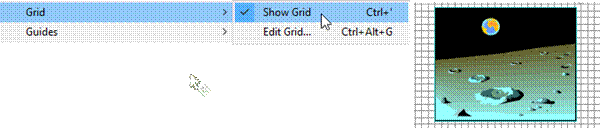
17. Snap the “moon surface” image to the grid
From the Main Menu, Select
Grid-> Show Grid. Move the image
along the drig
18. Verify your document has the required objects on the stage. See attached sample of the Flash output file- Chapter3.html.
19.
Save your Animate file in your chapter3 folder.
20. Publish your file in
JavaScript/HTML format.
From the Main Menu, select Publish Settings.
Select the checkboxes- Center Stage=Both,
Make Response= Both and Scale to fill visible area= Fit in View
Click on the Publish button

21. Test
Movie. Press <Ctrl><Enter>
or from the Main Menu, select, Control -> Test.
SUBMIT:
2. Zip
up your Exercise-3 folder containing the Animate Files
NOTE: Right click on the folder and select Send to
“Compress Folder”. The file will have a
file extension of .zip.
3.. Submit and upload the screenshot and zipped
up compress Exercise-3 folder to the
Canvas Animate Exercise 3 drop box.
|
Topics |
Points |
|
1. Select and rearrange object |
2 |
|
2. Edit object using the Eraser Tool |
2 |
|
3. Change the color fill of an object |
2 |
|
4. Customize the line with the Ink Bottle tool |
2 |
|
5. Reshape the object using the Selection tool |
2 |
|
6. Reshape the object using the Subselection tool |
2 |
|
|
2 |
|
8. Create a custom color swatch and apply to object |
2 |
|
9. Make a custom gradient fill and apply to object |
2 |
|
10. Transform a gradient fill object |
2 |
|
11. Scale and rotate an object using the Free Transform tool |
2 |
|
12.
Create group of shapes and fills |
2 |
|
13. Send groups of object forward and backward |
2 |
|
14. Align the objects |
2 |
|
15. Snap object to grid |
1 |
|
16. Snap to objects |
1 |
|
Total |
30 |